Edit menu
■ Undo: Ctrl+Z
This item reverts the operation that was performed to the previous state.
Press Ctrl+Z, click Undo on the context menu that is displayed by right-clicking the Layer area, or click Undo on the Edit menu.
■ Redo: Ctrl+Y
This item restores a previously reverted operation. If you perform another operation after Undo, you will no longer be able to use Redo.
Press Ctrl+Y>, click Redo on the context menu that is displayed by right-clicking the Layer area, or click Redo on the Edit menu.
■ Delete: Delete
This item deletes a control.
Select a control that has been placed on the Layer area and press Delete or click Delete on the context menu or the Edit menu.
■ Copy: Ctrl+C
This item copies a control.
Select a control that has been placed on the Layer area and press Ctrl+C or click Copy on the context menu or the Edit menu.
■ Cut: Ctrl+X
This item cuts a control.
Select a control that has been placed on the Layer area and press Ctrl+X or click Cut on the context menu or the Edit menu.
■ Paste: Ctrl+V
This item pastes a copied control.
Select the Layer area and press Ctrl+V or click Paste on the context menu or the Edit menu.
■ Paste multiple
This item pastes multiple copies of the copied control.
Select the Layer area and click Paste multiple on the context menu or the Edit menu.
The following window will be displayed. Please make settings as necessary.
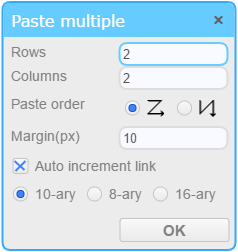
| Item | Description |
|---|---|
| Rows | Sets how many rows to paste. Values from 1 to 10 can be specified. |
| Columns | Sets how many columns to paste. Values from 1 to 10 can be specified. |
| Paste order | Specify whether to paste controls in the order of the horizontal direction or the vertical direction. |
| Margin (px) | Specify the margin between pasted controls in pixels. |
| Auto increment link |
When enabled, the link target of the copied control can be automatically incremented, and the pasted control can link to another target. From 10-Ary(decimal) / 8-Ary(octal) / 16-Ary(hexadecimal) you can select the increment method. Ex1)When 8-Ary is specified and the link target of the copied control is "A006" The link target of the pasted control is "A006", "A007", "A010" ... in that order. Ex2)When 10-Ary is specified and the link target of the copied control is "B" The link target of the pasted control is "B", "B1", "B2" ... in that order. Ex3)When 16-Ary is specified and the link target of the copied control is "CF" The link target of the pasted control is "CF", "D0", "D1" ... in that order. |
■ Alignment
This item adjusts the position or size of two or more selected controls.
First select the controls and then click one of the following submenu items on the context menu or Edit menu.
1. Align Left
This item aligns the position of the selected components to the left edge of the reference component.
2. Align Right
This item aligns the position of the selected components to the right edge of the reference component.
3. Align Horizontal Center
This item aligns the position of the selected components to the center position of the components located at the right and left edges.
4. Align Top
This item aligns the position of the selected components to the top edge of the reference component.
5. Align Bottom
This item aligns the position of the selected components to the bottom edge of the reference component.
6. Align Vertical Center
This item aligns the position of the selected components to the center position of the components located at the top and bottom edges.
7. Horizontal Same Gap
This item sets equal horizontal spacing between the selected components.
8. Vertical Same Gap
This item sets equal vertical spacing between the selected components.
9. Same Width
This item sets the width of the selected components to the same width as the reference component.
10. Same Height
This item sets the height of the selected components to the same height as the reference component.
11. Same Size
This item sets the size of the selected components to the same size as the reference component.
■ Bring to Front
This item moves the selected components to the front. If multiple components have been selected, they are moved to the front while maintaining their original display order.
First select the controls and then click Bring to Front on the context menu or the Edit menu.
■ Send to Back
This item moves the selected components to the back. If multiple components have been selected, they are moved to the back while maintaining their original display order.
First select the controls and then click Send to Back on the context menu or the Edit menu.
■ Group
This item groups two or more selected controls.
First select the controls and then click Group on the context menu or the Edit menu.
■ UnGroup
This item cancels the group for the selected controls.
First select the controls and then click UnGroup on the context menu or the Edit menu.
■ Select all: Ctrl+A
When you select a layer area and enter Ctrl+A key, all controls in the selected layer will be selected.
■ Data Tree of the selected controls
Displays a tree of data linked to the selected control.
You can check and edit the linked data.
After selecting the control, right-click and select the [Data Tree of the selected control] from the menu displayed.