Properties area
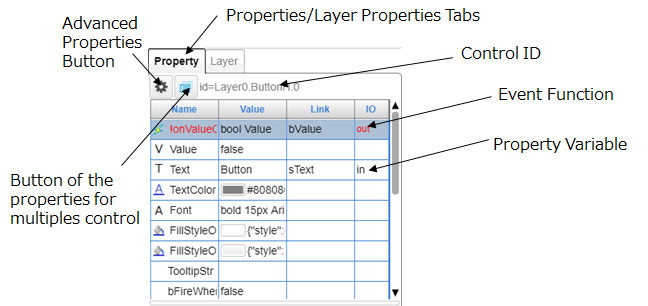
The Properties area allows you to configure the properties of controls.
Each control has property variables, and certain controls have event functions and/or advanced properties.
■ Property variables
Property variables are displayed in black.
Each property variable has Name, Value, Link, and IO items.
Click on Value, Link, or IO of the property variable to edit and the corresponding value can be changed.
How to edit the value will depend on the property variable item. Some items are directly entered and others are selected from a list.
The edited value is immediately reflected in the control.
If the property is a string, you can press the << button, Editing Tool for Multiple Languages is started to edit and select the string that can be switched according to the displayed language.
When clicking the "Link" column, the following buttons are displayed. In addition to entering the direct value, you can select the value from the tree displayed by clicking the button.
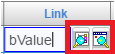
The button on the left side shows "Device tree" and the button on the right side shows "Data tree".
■ Event functions
Event functions are displayed in red.
Each event function has Name, Value, Link, and IO items.
Click on Link of an event function to edit and the corresponding value can be changed. Name, Value, and IO are fixed values.
An event occurs when certain conditions are satisfied. This value cannot be manually modified.
For example, the ChangeValue event occurs when the value has been modified. In this case, the value set for the link is updated with the value of value after the ChangeValue event has occurred.
■ Advanced properties
Advanced properties can be configured in portion of controls that are configured with complicated conditions. (Button, Trend, and other controls)
Click the Set Advanced Properties button to open the Set Advanced Properties window.
The items that can be configured will depend on the control.
■ Configure the property for multiple controls
This can be used when more than one control is selected.
Click the Configure the property for multiple controls to open the property setting dialog box.
For multiple controls, the values and links of the selected property can set simultaneously.
Even different types of controls can be set if they have the same name and type of properties.
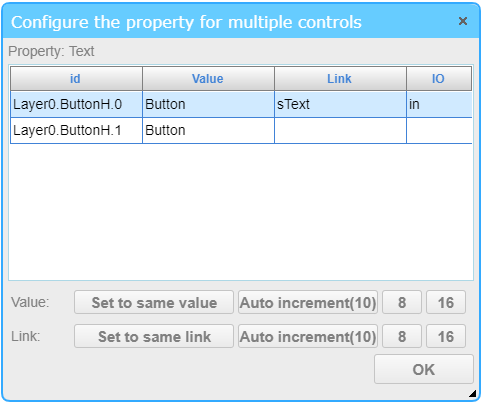
Items of "id", "Value", "Link", and "IO" of each control are displayed.
- Click "Value", "Link", or "IO" of the specified control to edit the value.
- Click the Set to same value or link, and the selected value / link will be set to other controls.
Only on the row below the currently selected control is set. If you want to apply it to all controls, change / select the value of the top row.
- Click the Auto increment (10/8/16), and the added value from the selected value / link will be set for other controls.
The buttons of 10/8/16 are the addition formula. They are additions in decimal / octal / hexadecimal, respectively.
It is set only on the row below the currently selected control. If you want to apply it to all controls, change / select the value of the top row.
■ Control ID
The ID of the control is displayed here. This ID can be used to control the control in JavaScript.
■ Properties/Layer properties tabs
Use these tabs to switch between the Properties area and the Layer Properties area.